
What are Notification Settings?
In order to receive important updates or alerts from EverMerge on your phone or tablet, notifications for the app must be enabled through your device settings.
Instructions for updating these settings can be found below.
Why is it important to turn on notifications for EverMerge?
Device notifications are the easiest and quickest way for you to get the most out of your gameplay, and receive important or time-sensitive information about what’s happening in-game.
We recommend enabling notifications so you’ll know right away when a new castle or creature is ready, a limited-time event is happening, or gifts and goodies are waiting for you inside!
How do I turn on device notifications?
Want to know how to check if these are enabled, or need a hand turning them on? No problem! Grab your device and follow the instructions below.
On iOS:
1. Open up your Settings app

2. Select Notifications
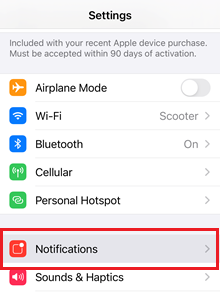
3. Find and select EverMerge from your list of apps.
4. Ensure Allow Notifications is turned on (green)
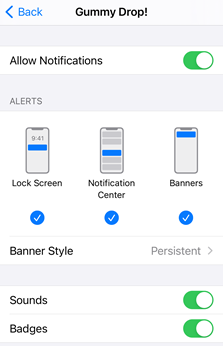
Here, you can choose the type of alerts you’d like to receive, whether on the Lock Screen, Notification Center, in the Banner, or all three! You can even turn on sounds and badges, previews, and group notifications according to your preferences.
On Android:
Steps to edit notifications on Android can be very different, depending on your device's manufacturer, or your version of the Android OS.
If the steps shown below aren't exactly what you see on your device, we apologize, but hope they'll still guide you in the right direction:
1. Open your Settings app
2. Scroll until you find Notifications
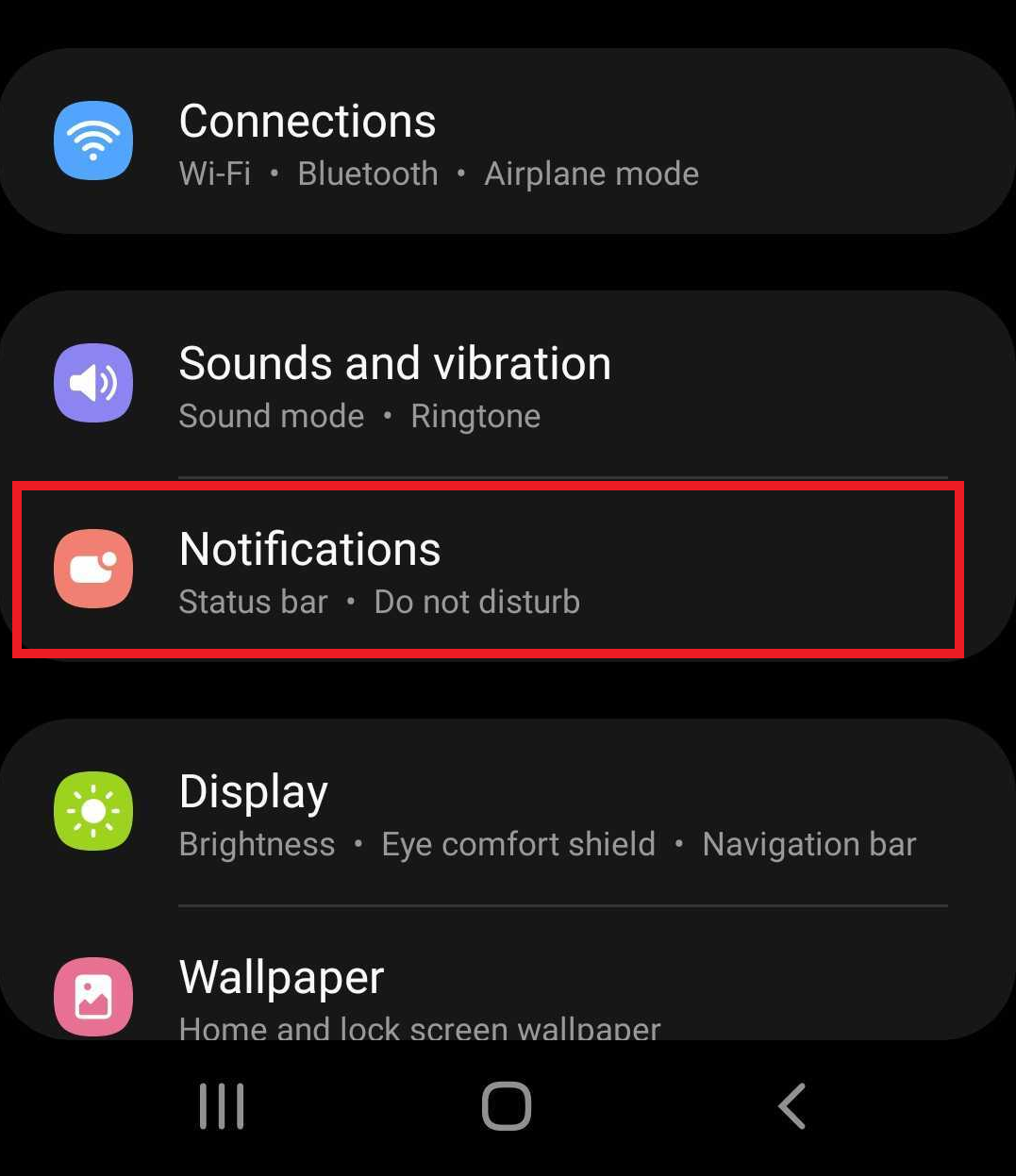
3. In the Notifications Settings, search through the listed apps to find Evermerge
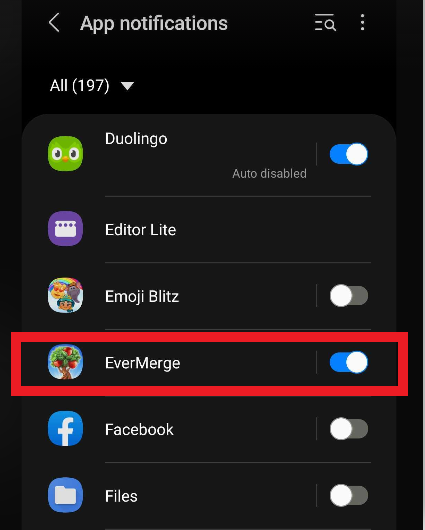
4. Tap on EverMerge, and here you can edit your notification settings
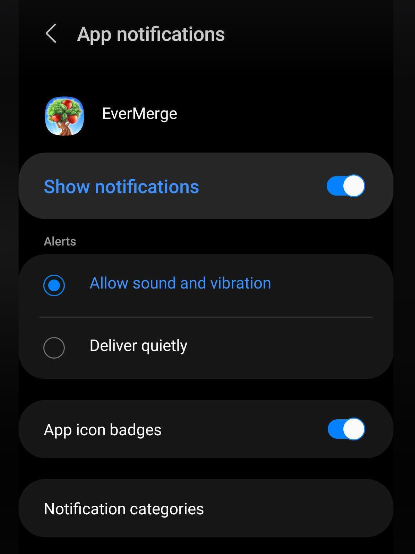
If you have any questions or issues as you try these steps, please contact our Support Team.